Tesseract OCR remains the most widely used open-source optical character recognition engine, supporting over 100 languages. However, its installation can present some pitfalls depending on the operating system and the chosen method. The 5.x branch is now the stable line of the project, and the version offered by some package managers does not always correspond to the latest available release.
Version Trap on Windows: Why winget Causes Issues for Tesseract
On Windows, the natural reflex is to use a command-line package manager. The concrete problem: winget installs version 5.4.0 of Tesseract, while the stable branch has reached 5.5.3 released at the end of July 2026. This discrepancy is not trivial.
Version 5.5.3 fixes memory leaks, improves recognition performance, and changes the behavior of certain CLI parameters. A user who installs via winget without checking ends up with an engine that is behind several fixes, and potentially less reliable recognition results on complex documents.
The safest method on Windows remains to download the 64-bit .exe installer from the UB Mannheim GitHub repository. This repository consistently offers the latest builds. The installer also allows you to select language packs directly during the process, avoiding the need to add them manually later. To delve into each step of the procedure, a guide to install Tesseract OCR details the manipulations with screenshots.
PATH Environment Variable: The Most Common Roadblock
Once Tesseract is installed on Windows, most errors reported by beginners stem from a poorly configured PATH. The software installs by default in a directory like C:Program FilesTesseract-OCR, but this path is not automatically added to the system environment variables.
Without this configuration, typing tesseract in a terminal returns an error like “command not found.” To fix this, you need to open the advanced system settings in Windows, access the environment variables, and then add the full installation folder path to the PATH variable.

A quick test can validate the installation:
- Open a terminal (cmd or PowerShell) and type
tesseract --versionto check that the engine responds and displays the expected version number - Type
tesseract --list-langsto confirm that the installed language packs are correctly detected - Run recognition on a test image with
tesseract image.png output -l frato validate the complete functioning of the chain
If the command tesseract –version does not respond, the problem is almost always with the PATH.
Installing Tesseract OCR on Linux and macOS: Native Package Managers
On Linux (Debian, Ubuntu, and derivatives), installation is done via apt. The command apt-get install tesseract-ocr tesseract-ocr-fra installs the engine and the French pack in one operation. The package tesseract-ocr-osd adds automatic detection of orientation and script, useful for documents scanned at an angle.
On macOS, Homebrew manages the installation with brew install tesseract. Additional languages can then be added via brew install tesseract-lang. However, the version available via Homebrew may also lag slightly behind the latest GitHub release.
A common point for both systems: language packs determine the quality of recognition. Installing only the base package without appropriate language data produces poor results on French text. The .traineddata files come in three variants (fast, best, standard), each with a different speed/accuracy trade-off.
Traineddata Files and LSTM Models: What Changes Between Tesseract 4.x and 5.x
Migration from an older version of Tesseract to the 5.x branch involves checking the compatibility of model files. The traineddata files from version 3.x do not work with Tesseract 5.x. The LSTM models introduced from version 4.0 remain compatible, but the training tools have been modernized in the 5.x branch.
Three official repositories on GitHub host the language data:
tessdata: models combining the legacy engine and LSTM, general compromisetessdata_best: LSTM models trained for the best possible accuracy, slower to executetessdata_fast: LSTM models optimized for speed, slightly less accurate
For common use (scanning administrative documents, extracting text from scanned PDF files), the tessdata_best models offer the most reliable results. For batch processing on hundreds of pages, tessdata_fast reduces processing time without significantly degrading accuracy.
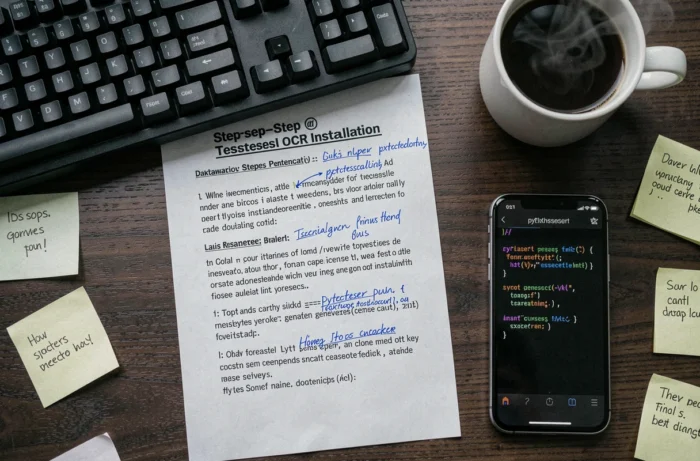
Post-Installation Verification and First Text Recognition
Once the software is in place, the first recognition serves as both a test and calibration. Tesseract is used via the command line with a straightforward syntax: tesseract input.png output -l fra generates a text file from an image.
The quality of the result heavily depends on the source image. A document scanned at low resolution or with insufficient contrast will produce text riddled with errors, regardless of the model used. Preprocessing the image (binarization, tilt correction, noise removal) significantly improves recognition accuracy.
Tools like ImageMagick or Python libraries such as Pillow can automate this preprocessing before passing the file to Tesseract. Image preprocessing has a greater impact on accuracy than model choice.
Version 5.5.3 of Tesseract remains a command-line tool without a native graphical interface. For users who prefer a visual interface, software like gImageReader or OCRFeeder integrates Tesseract as the recognition engine and adds a graphical layer on top. Installing Tesseract remains a prerequisite in all cases.